
Software Introduction
Getting a part cut involves four different programs, and beginners usually lose time because they expect one program to do everything. This page shows what each layer does, which tools are worth using in 2026, and the commands and workflow that apply to every PiBot controller.
The Toolchain — What Runs Where
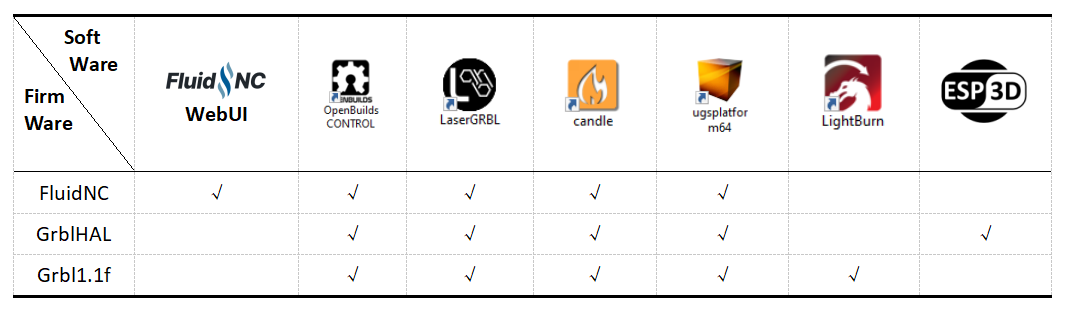
Firmware and Software Compatibility
| Firmware | FluidNC WebUI | gSender | OpenBuilds CONTROL | Candle | UGS | CNCjs | bCNC | ioSender | LaserGRBL | Rayforge | LightBurn |
|---|---|---|---|---|---|---|---|---|---|---|---|
| FluidNC | ✓ | ✓ | ✓ | ✓ | ✓ | ✓ | ✓ | — | ✓ | ✓ | ✓ |
| grblHAL | — | ✓ | ✓ | ✓ | ✓ | ✓ | ✓ | ✓ | ✓ | ✓ | ✓ |
| GRBL 1.1f / 1.1h | — | ✓ | ✓ | ✓ | ✓ | ✓ | ✓ | ✓ | ✓ | ✓ | ✓ |
Which Software Should You Use?
Senders — Streaming G-code to the Board

| Software | Cost | Runs on | Best for |
|---|---|---|---|
| FluidNC WebUI | Free | Any browser, served by the board | First setup and diagnostics on FluidNC. Console, jogging, file upload, SD access, live status — nothing to install. |
| gSender | Free GPLv3 | Windows, macOS (Intel + Apple Silicon), Linux (Intel + ARM) | Everyday CNC work. Modern UI, 3D toolpath view, probing wizards, macros, calibration tools. USB or Ethernet. |
| UGS — Universal Gcode Sender | Free | Windows, macOS, Linux, Raspberry Pi (Java) | The long-standing reference sender. Classic is minimal; Platform adds a customisable UI, macros, a G-code editor and SVG/DXF/image import. |
| Candle | Free | Windows, Linux | The simplest possible sender: load G-code, jog, preview the toolpath, run. |
| OpenBuilds CONTROL | Free | Windows, macOS, Linux | Beginner-friendly but capable, with built-in probing helpers. |
| CNCjs | Free | Node.js host — typically a Raspberry Pi — used from any browser | Leaving a Pi at the machine and driving it from a phone or laptop on the network. |
| bCNC | Free | Windows, macOS, Linux (Python) | Probing and auto-levelling. Scans the surface into a height grid and warps the G-code to follow it — the standard answer for PCB isolation milling and warped stock. |
| ioSender | Free | Windows only | grblHAL builds. Written by grblHAL's own maintainer, so it exposes features other senders do not. |

Laser Software
| Software | Cost | Runs on | Notes |
|---|---|---|---|
| LightBurn | Paid 30-day trial | Windows, macOS, Linux | The production standard. Design tools, layers, camera alignment, material test grids, rotary. Lists GRBL, FluidNC and grblHAL among supported controllers. Two tiers (Core / Pro); check the site for current pricing. |
| Rayforge New | Free open source | Linux, Windows (GTK4 / Libadwaita) | The strongest free LightBurn alternative to appear recently: 2D parametric sketcher, multi-layer jobs, camera alignment, rotary support, material recipes, path optimisation and image tracing in one app. |
| LaserGRBL | Free | Windows only | Lightweight and fast to learn, particularly strong at raster photo engraving. Sends only — design elsewhere. |
| Inkscape + laser extension | Free | Windows, macOS, Linux | Design in Inkscape, then export G-code with the J Tech Photonics Laser Tool or a gcode-tools extension, then send with LaserGRBL or a CNC sender. Three steps instead of one — fine occasionally, tiring daily. |


Design and CAM — Making the G-code
A sender does not create toolpaths. For anything you design yourself you need a CAD step and a CAM step first. These are the free and near-free options that produce GRBL-compatible G-code.
| Software | Cost | Covers | Notes |
|---|---|---|---|
| Carbide Create | Free | 2D CAD + CAM | From the makers of Shapeoko. Easy to learn, runs offline, and its G-code works on most GRBL routers. A good first CAM program. |
| Easel | Free tier | CAD + CAM + sender | Browser-based, so it runs anywhere — but it is cloud-only, with no offline mode. |
| Kiri:Moto | Free | CAM | Browser CAM that turns STL models into G-code; also available as an Onshape plugin. CAMLab (Sienci) is built on the same engine. |
| FreeCAD | Free open source | Parametric 3D CAD + CAM | Fully open source with a Path workbench for G-code. Very capable, but the CAM workflow has a real learning curve. |
| Inkscape | Free open source | 2D vector design | The usual starting point for laser artwork and 2D profiles; add an extension to emit G-code. |
| Estlcam | ~€50–60 | CAM + sender | Unusually beginner-friendly for 2.5D routing. The trial keeps working with a nag screen, so you can evaluate it properly. |
Machine States — and How to Get Out of Them
Every GRBL-family controller is always in one state, and most beginner confusion is really a state problem: the machine will not move because it is in Alarm, or a job will not resume because it is in Hold.
$X is not the same as homing. It only clears the alarm so the machine will move — the controller still does not know where it is. Use $X to get out of trouble, then $H to establish real position.Essential Commands
Type these into the sender's console or the FluidNC WebUI command line. They behave the same on GRBL, grblHAL and FluidNC unless noted.
System commands
| Command | What it does |
|---|---|
$$ | View all settings. $x=val writes one, e.g. $110=5000. |
$# | View G-code parameters — G54–G59 work offsets, G28/G30 positions, tool length offset, probe result. |
$G | Report active modal states (motion mode, coordinate system, units, plane…). |
$I | Show firmware version and build info. |
$N | Show startup blocks. $N0=line stores G-code that runs at every reset. |
$H | Run the homing cycle. The only correct way to establish machine position. |
$X | Clear the alarm lock. Movement is allowed again, but position is still unknown. |
$C | Check mode — parse the G-code and report errors without moving anything. |
$J=line | Jog without disturbing modal state, e.g. $J=G91 X10 F1000. |
$RST=$ / $RST=# / $RST=* | Reset settings / clear work offsets / erase everything. Use with care. |
$SLP | Sleep mode — de-energises steppers, spindle and coolant until reset. |
Real-time commands
These act immediately, even mid-job, and are never queued behind buffered motion.
| Key | What it does |
|---|---|
! | Feed hold — decelerate to a controlled stop without losing position. |
~ | Cycle start / resume — continue after a feed hold or an M0 pause. |
? | Status report — current state plus machine and work position. |
Ctrl-X | Soft reset — stop and reset the firmware without a power cycle. |
Senders expose feed, rapid and spindle overrides as buttons rather than typed characters — typically ±10% and ±1% steps over a 10–200% range for feed and spindle, and 100 / 50 / 25% for rapids.
FluidNC additions
| Command | What it does |
|---|---|
$CMD | List every command this firmware supports. The fastest way to explore FluidNC. |
$S | Show all settings. Most commands also have a long form, e.g. $Gcode/Mode for $G. |
$Limits | Live monitor of limit, probe and tool-setter inputs. Send ! to leave the monitor. |
$MD / $ME | Disable / enable the steppers so an axis can be moved by hand. $MD=X targets one axis. |
$MI | Re-initialise the motors — useful after powering the drivers late or changing a run-current setting. |
$SS | Repeat the startup messages, for when the console was opened after boot. |
$Bye | Restart the controller from the console. |
$ commands generally only work in Idle state. If one is refused, stop the job or clear the alarm first.Machine Zero vs Work Zero
Two different origins exist at the same time, and mixing them up is the most common way to crash a first job.
First Run, Step by Step
- Connect. USB serial, or join the controller's Wi-Fi and open the WebUI. Serial senders use 115200 baud.
- Check it answers. Send
?— you should get a status line. Send$Ito confirm the firmware build. - Clear the alarm. A controller with homing enabled starts in
Alarm. Send$Xto unlock, or go straight to homing. - Home the machine. Send
$H. Watch the first homing move with a hand on the power switch — a reversed direction or a mis-wired switch shows up here. - Check the limit inputs before trusting them. On FluidNC
$Limitsshows every input live; on PiBot boards the matching bench test is step 2.5 of your controller's checklist. - Set the work zero. Jog to the start point and zero the axes in your sender, then confirm with
$#. - Dry-run first. Use
$Ccheck mode, or run the job with the spindle/laser off and Z raised, before you cut anything.
The FluidNC Toolset
Beyond the WebUI, the FluidNC project ships several tools that are directly useful on PiBot boards.
FluidNC WebUI
Served by the controller itself over Wi-Fi. Console, jogging, file upload, SD browsing and live status from a browser on any device.
FluidNC Web Installer
Flashes firmware straight from a Chrome-family browser over USB — no toolchain, no Python. The usual way to install or update.
FluidTerm
A serial terminal aimed at FluidNC. Shows the boot log and startup messages that a graphical sender hides — the first place to look when a board seems dead.
FluidDial pendant
A physical jog dial. It can run over ESP-NOW, a direct radio link between ESP32s, so the pendant keeps working even if your Wi-Fi network does not.
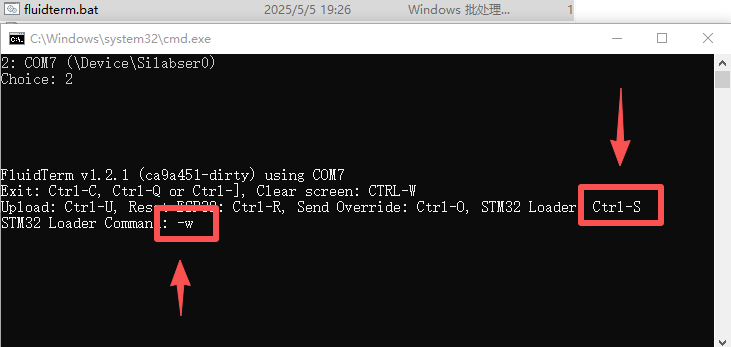
Ctrl-U upload, Ctrl-R reset, Ctrl-S STM32 loader, Ctrl-Q exit.Connection Methods
Main USB
Firmware installation, boot-log diagnosis and desktop senders. 115200 baud. Install the CP2102 / CH340 driver if the port never appears, and avoid charge-only cables.
Wi-Fi
FluidNC WebUI, or a network-enabled grblHAL build. PiBot boards ship with the access point fluidnc, password 12345678, WebUI at 192.168.0.1. You can also join the board to your own router from the WebUI.
SD card
Local G-code storage when enabled by the firmware and the YAML/build. Running from SD removes USB dropouts and sender stalls from the equation entirely — worth it for long jobs.
RJ12 / auxiliary USB
Model-specific pendant and expansion interfaces. They are not automatically general-purpose PC connections — check your controller's pinout page first.


Going Further
Probing
A touch plate finds the top of the stock and sets Z zero far more accurately than paper-shimming. gSender and OpenBuilds CONTROL both ship guided probing wizards; PiBot boards expose a dedicated probe input.
Surface auto-levelling
For PCB isolation milling or warped stock, bCNC scans a grid of probe points and warps the G-code so a 0.1 mm engraving follows the real surface instead of an imaginary flat plane.
Macros and startup blocks
$N0= stores a G-code line that runs at every reset — handy for forcing units or a coordinate system. Senders add their own macro buttons for tool changes and repeat operations.
Running from SD
Upload the file through the WebUI, then start it from the controller. The job no longer depends on your computer staying awake, connected and un-updated.
Common Problems
| Symptom | Where to look |
|---|---|
| Serial port missing | USB driver not installed, a charge-only cable, or the port is still held open by another sender. |
| Connects but replies are garbage | Wrong baud rate — use 115200. |
Stuck in Alarm after power-on | Normal when homing is enabled. $X to unlock, then $H to home. |
| Homes the wrong way, or into the frame | Homing direction or limit-switch pin assignment. Cut power first, then re-check wiring and axis configuration. |
| Cuts in the wrong place | Work zero, not machine zero. Re-zero on the stock and confirm the G54 offset with $#. |
| Laser fires while jogging, or never fires | Laser mode and the sender's S-value range. On FluidNC the laser is a separate tool from the PWM spindle — select it with M6. |
| Job stutters or stops part-way | USB noise or a busy computer. Run from SD card, and route the data cable away from motor and spindle wiring. |
| Engraving depth varies across the sheet | The stock or the bed is not flat. Probe and auto-level with bCNC, or face the spoilboard. |
Official References
- Firmware — FluidNC project · FluidNC documentation · FluidNC Web Installer · grblHAL project · GRBL project · GRBL v1.1 command reference
- CNC senders — gSender · Universal Gcode Sender · Candle · OpenBuilds CONTROL · CNCjs · bCNC · ioSender
- Laser software — LightBurn · Rayforge · LaserGRBL · LightBurn Scanning Offset Adjustment
- Design and CAM — Carbide Create · Easel · Kiri:Moto · FreeCAD · Inkscape · Estlcam
For troubleshooting, continue to the shared PiBot Controller FAQ.