PiBot RJ12 Adapter V4.2
A protected RJ12/UART entry point for PiBot V4.96 Pro and V4.7B. Connect a Pendant directly, or place the adapter before an I/O Expander V5. The new board adds a physical RX/TX selection jumper.
Section 1What changed in V4.2?
Selectable RX/TX
The V4.2 adapter adds a physical jumper group that can keep or exchange the two UART signal lines. This avoids modifying a verified cable when the two ends use the opposite RX/TX order.
For PiBot 4.x boards
This page documents the adapter with V4.96 Pro and V4.7B. V5.88 Ultra and V5.77 Carrier have their own direct RJ12 connection path and normally do not use this adapter there.
Protected interface
The adapter retains its series resistors and suppression components. It is an interface for the documented PiBot UART/RJ12 route, not a universal pinout converter.
Section 2Choose the connection path
Direct Pendant connection
Use the shortest path when only the Pendant needs the controller UART.
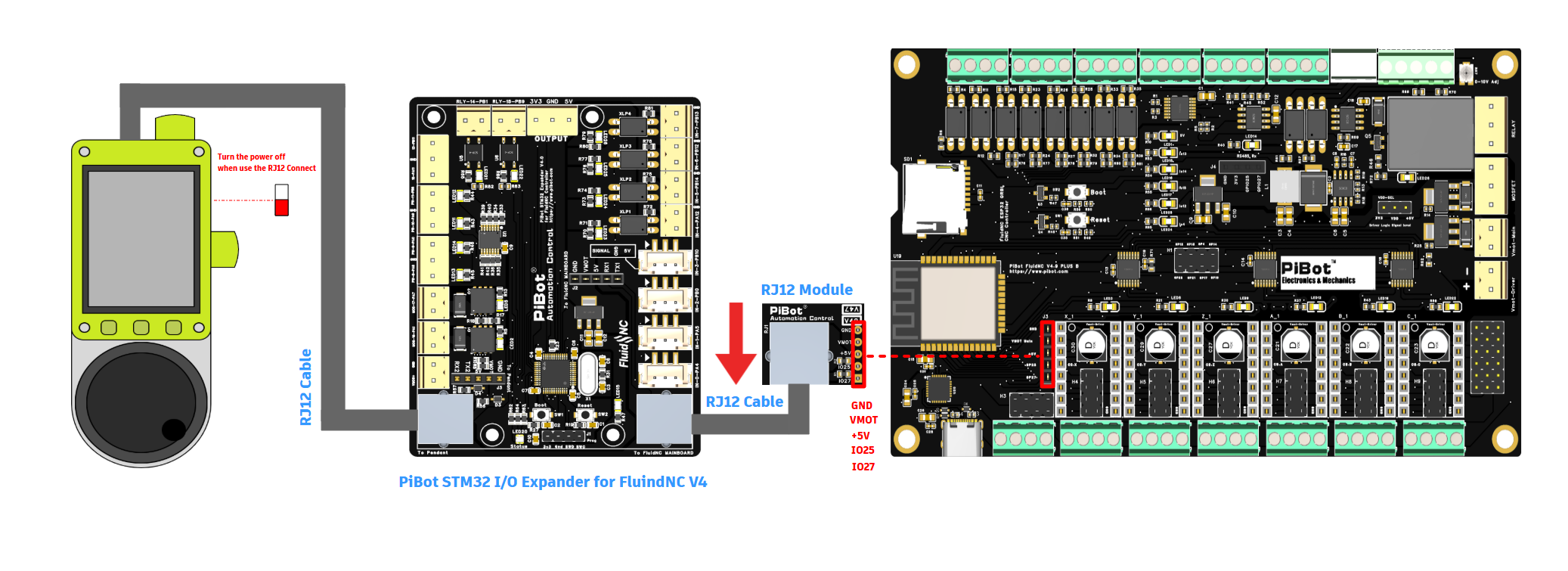
Connection through I/O Expander V5
Use this route when the Pendant is attached to the Expander's Pendant-side port.
Section 3RX/TX selection — make one correction only
UART communication needs the transmitting line at one end to reach the receiving line at the other. The V4.2 adapter gives you a physical way to correct the route, but the same correction may also exist elsewhere in a current setup.
| Correction point | Available on | When to use it | Important |
|---|---|---|---|
| Physical RJ12 Adapter | Adapter V4.2 | Correct the controller-side RX/TX route. | Use the jumper group shown for the actual controller diagram below. |
| Physical Pendant | Pendant V4.2 | Correct the Pendant-side RX/TX route. | Do not also swap at the adapter. |
| Physical Expander | I/O Expander V5 | Correct its controller-side or Pendant-side UART path. | Treat each UART path separately; follow the V5 guide. |
| Software ESP3D | Current ESP3D firmware | Settings → Setting Editor → Swap RX TX | Leave physical hardware unswapped if software performs the correction. |
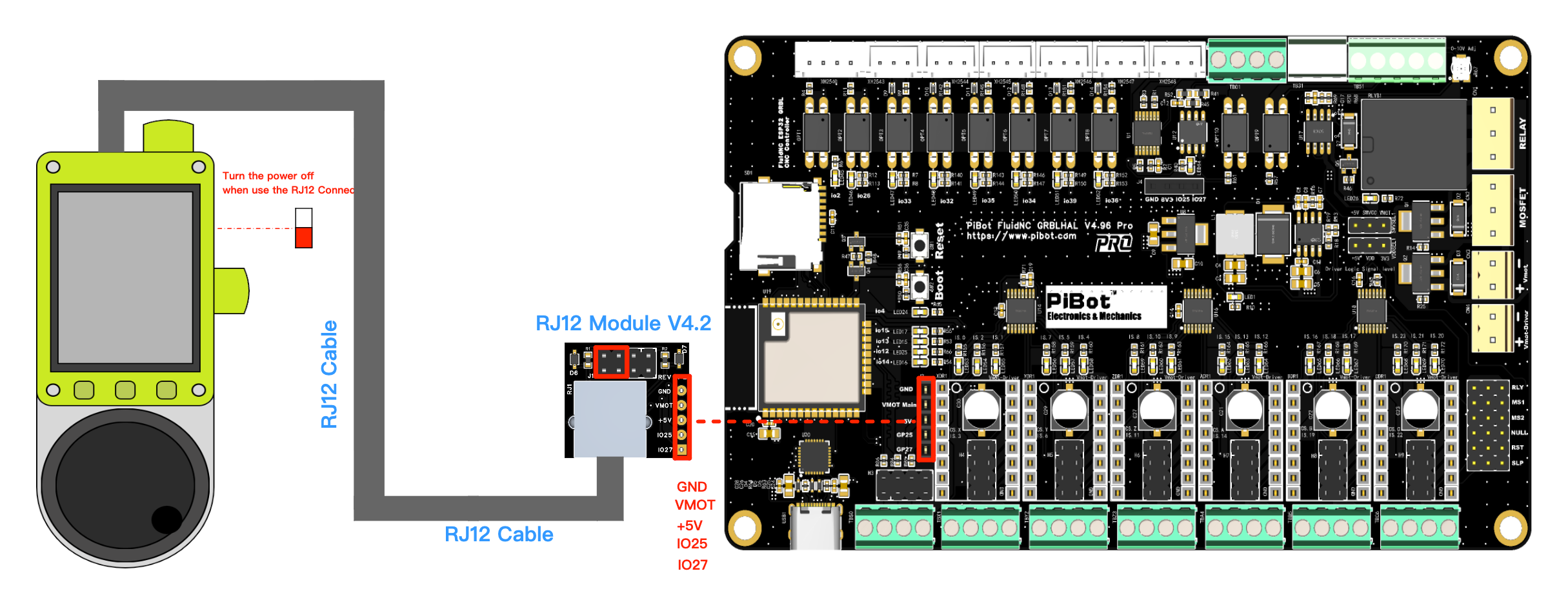
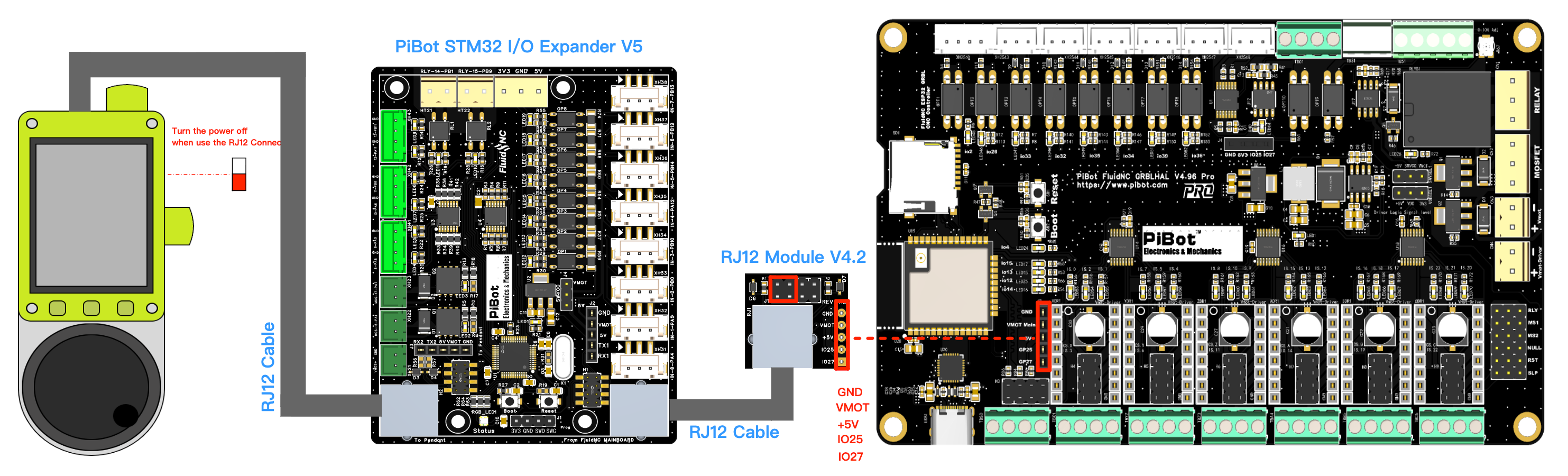
V4.96 Pro diagram
The verified V4.96 drawing marks the adapter selection group on the left side of the module. Copy the red-box position from the V4.96 image, not from the V4.7B image.
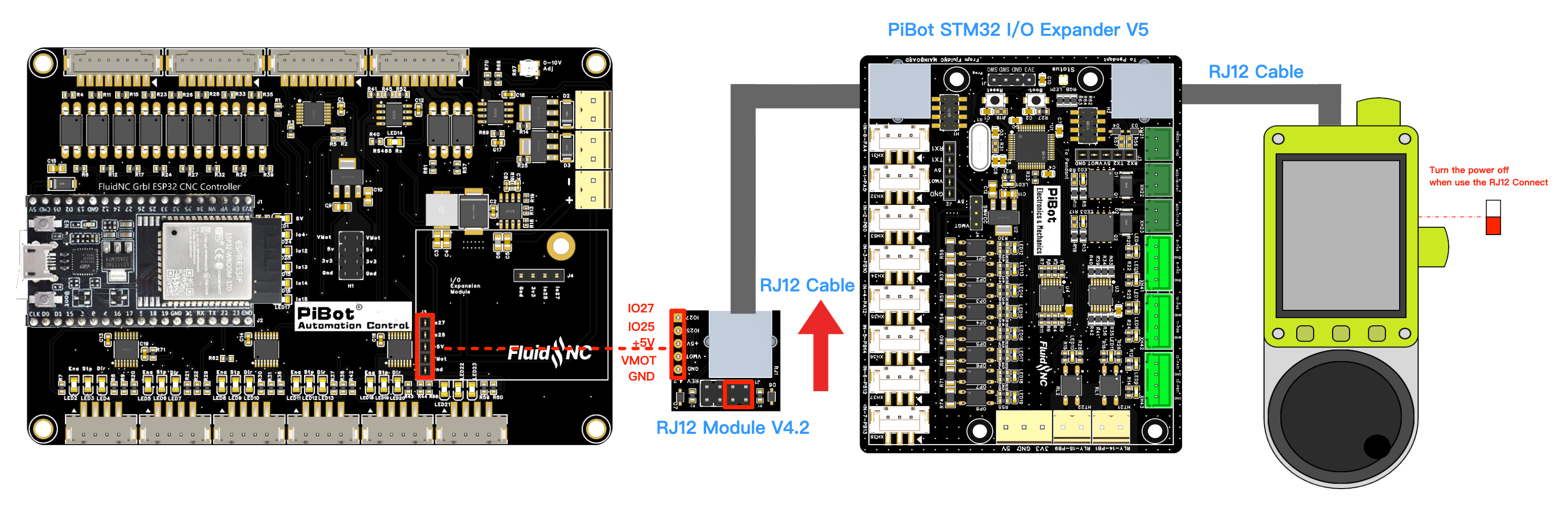
V4.7B diagram
The verified V4.7B drawing marks the adapter selection group on the right side. This difference is intentional because the controller-side header order is different.
Section 4Direct connection to Pendant V4.2
GPIO.27 and RX GPIO.25; use the V4.96 configuration and RJ12 test page.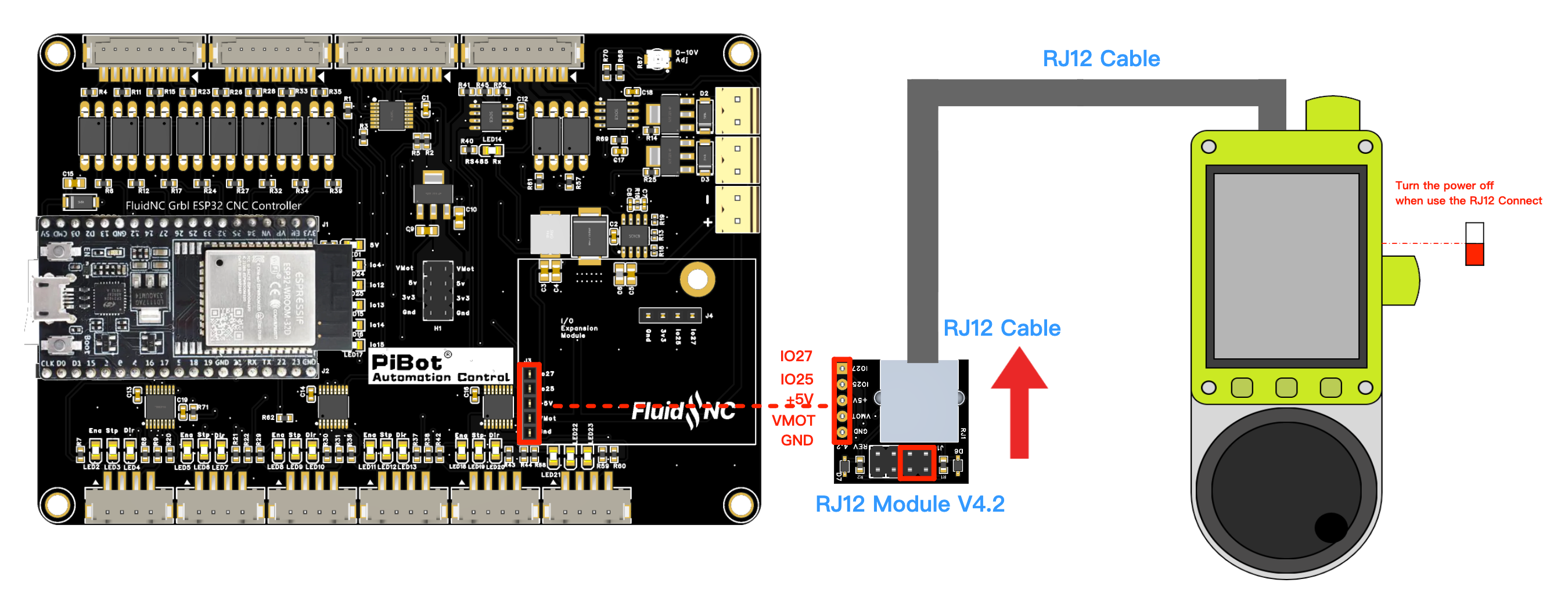
GPIO.27 and RX GPIO.25; use the V4.7B configuration and test page.Section 5Connection through I/O Expander V5
The Expander sits between the controller-side adapter and the Pendant. It has its own RX/TX selection points, so check the complete signal path before changing anything.
Section 6First power-up and communication check
Before power
Communication test
GPIO.27/25 and cannot be enabled together.Pass
The Pendant or Expander powers normally, establishes communication and remains stable. Buttons/status respond as expected with no reset loop or unusual heat.
Fail — stop here
If the unit powers but cannot communicate, resets, becomes hot or behaves intermittently, remove power. Do not keep trying jumper combinations while energized.
Section 7Troubleshooting and related guides
Powered, but no communication
- Check for two active RX/TX swaps that cancel each other.
- Confirm you used the V4.96 or V4.7B adapter group shown in the matching diagram.
- If ESP3D software swap is active, return the physical route to the unswapped position.
- Confirm the correct UART pins, baud rate and OLED sharing rule on the controller page.
- With an Expander, confirm the controller cable enters From FluidNC Mainboard.
Unstable or intermittent link
- Use the approved cable and keep it away from motor, spindle and VFD wiring.
- Check RJ12 plugs latch fully and jumpers are not loose or offset by one pin.
- Do not hot-plug the adapter, cable, Expander or Pendant.
- If any board becomes unusually hot, remove power and re-check the complete pinout before reuse.
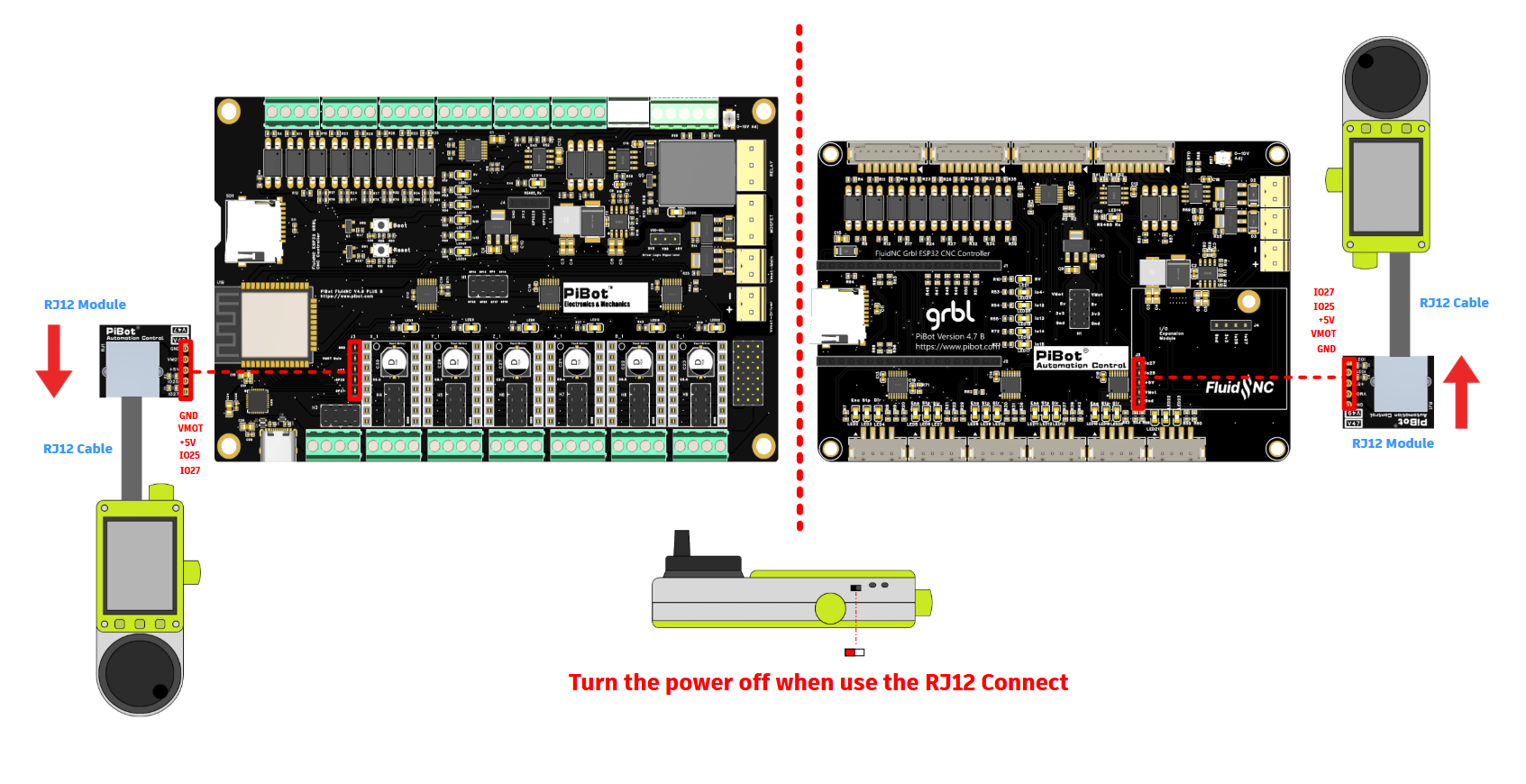
Legacy overview drawings
These original drawings are kept for existing users and earlier hardware. For the Adapter V4.2 RX/TX jumper position, the four current diagrams above take precedence.