2.4 Test Wi-Fi and SD Card
Check List · Step 4 of 12 · Connect to Wi-Fi, open FluidNC WebUI, and verify TF / microSD card detection
▶️ Video Guide — 2.4 Test Wi-Fi and SD Card
Watch the connection flow, then use the written checks below to confirm both the WebUI and microSD status.
ℹ️
Objective: This step verifies that the controller can start the default FluidNC Wi-Fi access point, that the WebUI can be opened in a browser, and that the TF / microSD card can be detected by the system if installed.
⚠️
Before starting: Make sure Step 2.2 has been completed and the board is powered on. If you reinstalled firmware in Step 2.3, make sure both
config.yaml and index.html.gz have been uploaded before testing the WebUI.1
Wi-Fi Connection
- Open the Wi-Fi network list on your computer.
- Find and connect to the FluidNC access point.
- Wi-Fi SSID: fluidnc
- Password: 12345678
💡 The Wi-Fi network is created by the controller board itself. Your computer does not need to be connected to your home router for this test.
2
Web Interface Access
- Open the Google Chrome browser.
- Enter the address: 192.168.0.1
- Wait for the FluidNC WebUI page to load.
- Confirm that the WebUI interface can be opened normally.
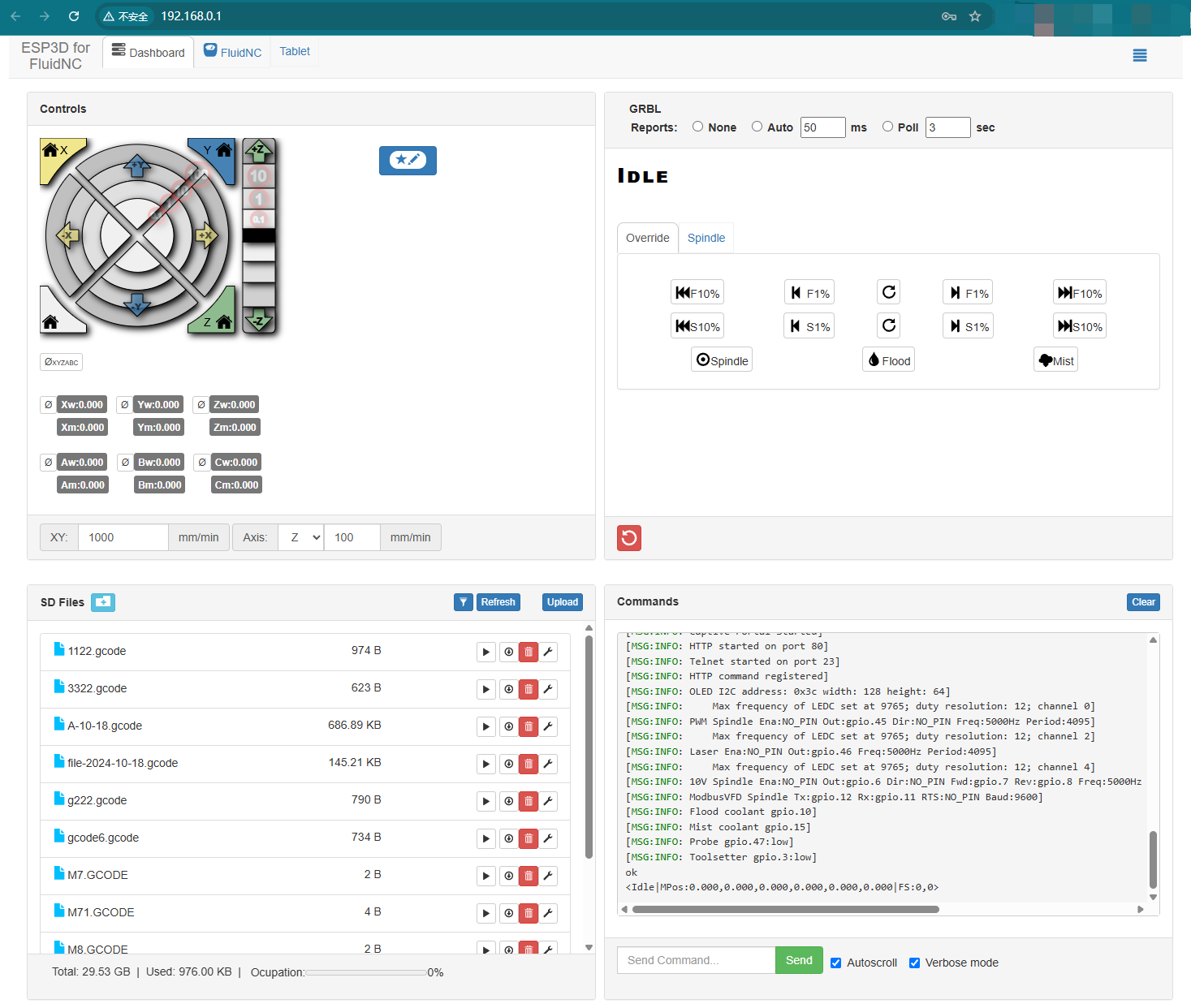
Reference image: connect to the FluidNC WebUI and check the TF / microSD card file area.
| Item | Default Value |
|---|---|
| Wi-Fi SSID | fluidnc |
| Password | 12345678 |
| WebUI Address | 192.168.0.1 |
| Recommended Browser | Google Chrome |
3
Console Messages You May See
When the WebUI console first loads, the controller prints a few startup messages. The two below are normal on the V5.88 Ultra and do not mean there is a fault.
- No OLED installed: a red OLED missing warning is shown in the console. This only means no OLED display was detected — the controller still works normally and the warning can be safely ignored.
- USB UNPLUGGED message: when the board is connected through the CP2102 USB port, FluidNC may repeatedly print USB UNPLUGGED in the console (the ESP32-S3 native USB channel is unused). To stop these messages, send the command below once.
$USBCDC/Enable=OFF
type in WebUI console
💡 This setting is stored in the controller (NVS) and stays active after power cycles, so the USB UNPLUGGED messages will not appear again.
4
TF Card Content Display Verification
- If a TF / microSD card is installed, open the file or SD card section in the WebUI.
- Confirm that the card is detected by the system (optional).
- If the card contains files, confirm that the file list can be displayed.
- If no TF / microSD card is installed, this part can be skipped.
💡 The TF / microSD card test is optional. It is mainly used to confirm that the SD card slot and WebUI file listing are working correctly.
✅
Normal behavior: If the WebUI opens successfully and the controller remains connected, the Wi-Fi function is working. If a TF / microSD card is inserted and the file list can be displayed, the card detection is also working.
🔧 Quick Troubleshooting
- If you cannot find fluidnc, restart the board and wait about 10 seconds.
- If 192.168.0.1 does not open, confirm that your computer is connected to the fluidnc Wi-Fi network.
- If the WebUI page is missing or blank after reinstalling firmware, upload
index.html.gzagain. - If the USB UNPLUGGED message keeps repeating, re-send
$USBCDC/Enable=OFFin the console and confirm it is accepted (ok). - If the TF / microSD card is not detected, power off the board, reinsert the card, then power on again.
- Use a FAT32-formatted TF / microSD card for better compatibility.
✓
Expected Results
- The computer can connect to the Wi-Fi SSID fluidnc using password 12345678.
- The FluidNC WebUI can be opened from 192.168.0.1.
- If OLED installed: The display shows normal operation with no errors.
- If OLED not installed: A red OLED missing warning is shown in the console, but the controller remains fully functional.
- USB console: After sending
$USBCDC/Enable=OFF, the USB UNPLUGGED messages no longer appear. - If TF / microSD card installed: The system detects the card and can display its contents in WebUI.